Building a Secure, VPC-Enabled Serverless Image Resizing and Compression Pipeline on AWS
Build an event-driven media pipeline that uses Amazon S3, AWS Lambda, and an S3 Gateway Endpoint to process images privately without sending S3 traffic over the public internet.
Architecture Overview
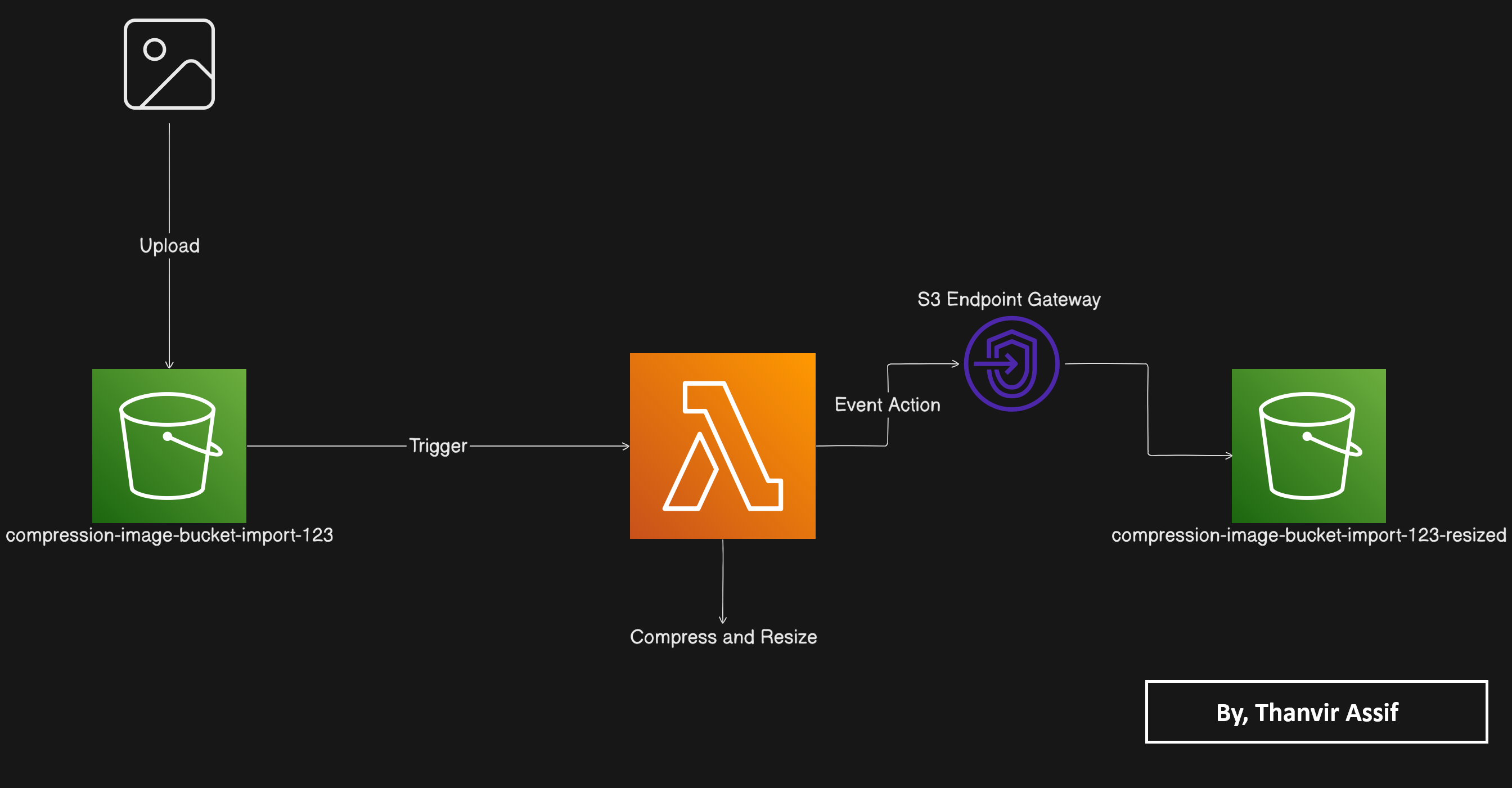
The Architecture (The Flow)
A user uploads an image to the source bucket. The S3 object-created event invokes Lambda, which runs in a private VPC subnet, reads the object through an S3 Gateway Endpoint, compresses and resizes it, and writes the result to the destination bucket. CloudWatch receives execution logs for observability.
Click to Zoom
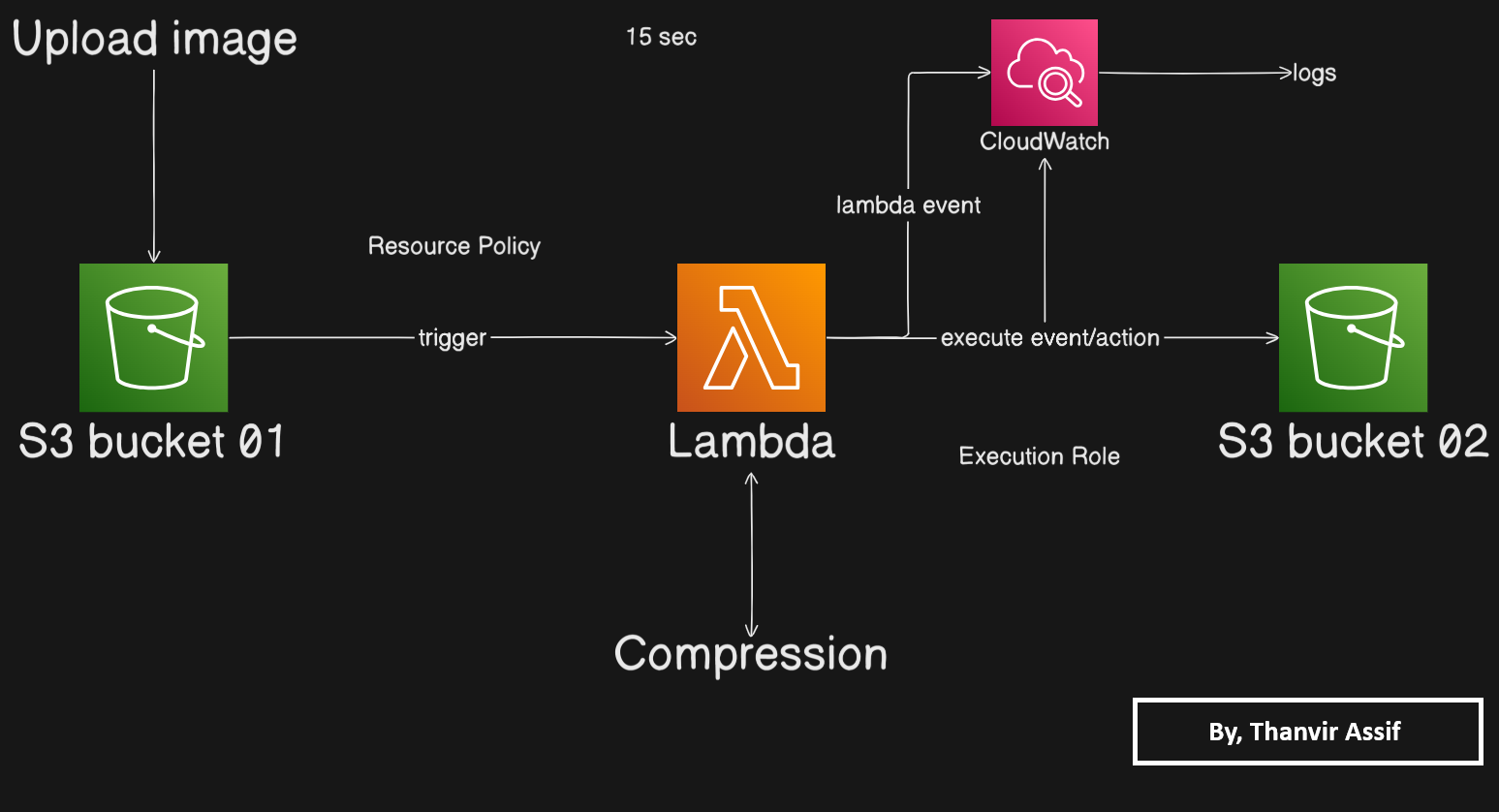 Click to Zoom
0 Required Prerequisites
- An AWS account and a selected AWS Region.
- Permission to create S3 buckets, VPC resources, IAM roles, Lambda functions, and CloudWatch logs.
- A Pillow-compatible Lambda deployment bundle. Python 3.12 must match the compiled Pillow binaries in the bundle.
- Unique bucket names if the example names are already taken in the selected Region.
1Create the Amazon S3 Buckets
Separate raw uploads from processed files so the input event cannot accidentally process its own output.
- Open the Amazon S3 console and choose Create bucket.
- Create the source bucket:
compression-image-bucket-import-123. - Create the output bucket:
compression-image-bucket-import-123-resized. - Choose the same Region for both buckets and keep Block Public Access enabled.
2Configure a Private VPC and S3 Gateway Endpoint
A Gateway Endpoint adds S3 routes to a VPC route table. Lambda can then reach S3 privately without a NAT Gateway or public IP address.
- In the VPC console, choose Create VPC → VPC only. Name it
LabVPCand use10.0.0.0/16. - Create a subnet in
LabVPCwith CIDR10.0.1.0/24. Associate it with a route table. - Choose Endpoints → Create endpoint. Name it
S3 VPC Endpoint. - Select the AWS service for S3 with endpoint type Gateway (
com.amazonaws.<region>.s3). - Select
LabVPCand the route table associated with the Lambda subnet, then create the endpoint. - Create a security group named
LambdaSecurityGroupinLabVPC. Keep outbound access enabled so the function can reach its VPC endpoint.
3Create and Configure the Lambda Function
- Open Lambda and choose Create function → Author from scratch.
- Set the function name to
Create-Thumbnailand runtime to Python 3.12. - Under additional settings, choose the custom execution role with S3 read/write and CloudWatch Logs permissions.
- Enable VPC access, select
LabVPC, subnet10.0.1.0/24, andLambdaSecurityGroup. - Download the compression logic ZIP: CreateThumbnail.zip.
- In the Lambda Code tab, choose Upload from → .zip file, select Upload from local .zip file, choose the downloaded
CreateThumbnail.zip, and save. - Set the handler to
CreateThumbnail.handlerin Runtime settings.
CreateThumbnail.handlerLambda Execution Policy
Attach this policy to the Lambda execution role. The policy includes CloudWatch logging, S3 object access, and the network-interface permissions required by a VPC-attached Lambda.
{
    "Version": "2012-10-17",
    "Statement": [
        {
            "Action": [
                "logs:CreateLogGroup",
                "logs:CreateLogStream",
                "logs:PutLogEvents"
            ],
            "Resource": [
                "arn:aws:logs:us-west-2:532886848693:log-group:/aws/lambda/compression-function:*",
                "arn:aws:logs:us-west-2:532886848693:log-group:/aws/lambda/compression-function"
            ],
            "Effect": "Allow"
        },
        {
            "Action": [
                "s3:GetObject",
                "s3:PutObject"
            ],
            "Resource": "arn:aws:s3:::*",
            "Effect": "Allow"
        },
        {
            "Action": [
                "ec2:CreateNetworkInterface",
                "ec2:DescribeNetworkInterfaces",
                "ec2:DescribeSubnets",
                "ec2:DeleteNetworkInterface",
                "ec2:AssignPrivateIpAddresses",
                "ec2:UnassignPrivateIpAddresses"
            ],
            "Resource": "*",
            "Effect": "Allow"
        }
    ]
}4Configure the S3 Event Source Trigger
- Open the
Create-Thumbnailfunction overview and choose Add trigger. - Select S3, then choose
compression-image-bucket-import-123. - Select All object create events (
s3:ObjectCreated:*). - Acknowledge the recursive invocation warning and choose Add.
Keep the output bucket separate from the trigger bucket. This prevents the Lambda write operation from generating another invocation loop.
5Test and Troubleshoot the Pipeline
- Upload a sample image to
compression-image-bucket-import-123. - Wait a few seconds, then open
compression-image-bucket-import-123-resized. - Confirm that the resized or compressed image appears in the destination bucket.
- Open the Lambda Monitor tab and follow the CloudWatch Logs link if processing fails.
Troubleshooting checklist
- Check that the Lambda execution role grants
s3:GetObjecton the source bucket ands3:PutObjecton the destination bucket. - Confirm the S3 trigger is attached to the source bucket, not the output bucket.
- Confirm the endpoint is a Gateway endpoint for S3 and is associated with the Lambda subnet route table.
- Check the handler spelling and that the Pillow binaries match Python 3.12 and the Lambda architecture.
- Review CloudWatch logs for object-key encoding, missing permissions, and image-format errors.
6Cleanup and Cost Avoidance
For a lab, delete the test objects and empty both buckets before deleting them. Then remove the Lambda function, VPC endpoint, subnet, security group, and VPC when no longer needed. Review CloudWatch log groups as well. S3 Gateway Endpoints do not incur hourly endpoint charges, but S3 storage, requests, Lambda invocations, and CloudWatch logs can still generate costs.